
There are few printer problems like a Samsung printer not connecting to WiFi that feel very annoying.
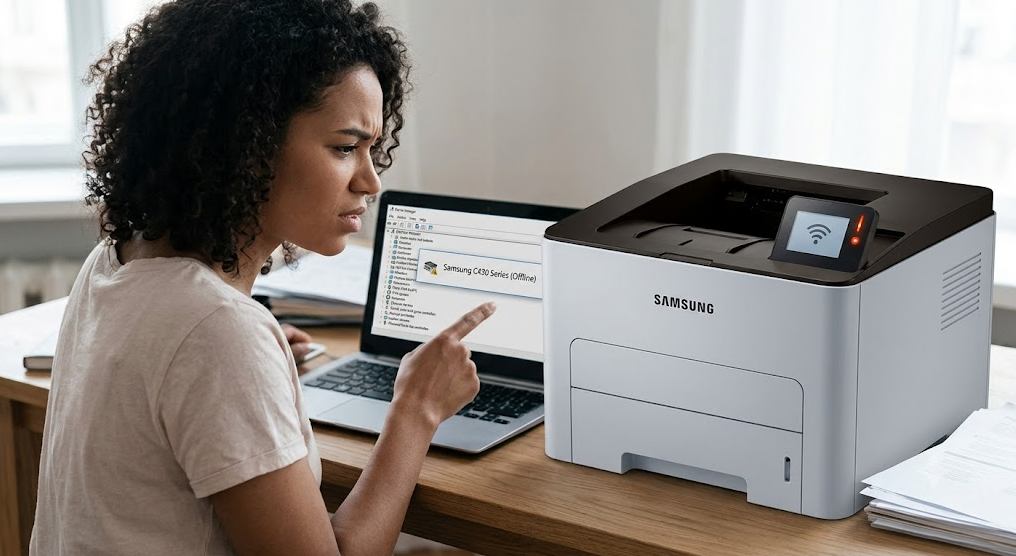
You press Print, expecting the document to come out in a few seconds, and... nothing happens. You check the printer. It looks fine. The WiFi icon might even be blinking. Your laptop says the printer is offline, or maybe it has disappeared from the list altogether.
At that point, it's easy to assume the printer has finally given up.
But honestly, that's rarely what has happened.
In most cases, a Samsung printer that won't connect to WiFi is dealing with a network issue, not a hardware failure. Sometimes the printer is trying to connect to an old network. Sometimes the router's settings changed after an update. And sometimes it's something surprisingly simple, like the printer trying to join a 5 GHz network even though it only supports 2.4 GHz.
The tricky part is that different problems can produce almost the same symptoms.
A failed password, an unsupported security setting, outdated firmware, or even your router's configuration can all lead to the same message:
"Unable to connect."
That's why randomly trying fixes usually turns into frustration.
Instead, we're going to narrow things down one step at a time. By the end of this guide, you should know whether the problem is coming from the printer, the wireless network, or the connection between the two. More importantly, you'll know which fixes are actually worth trying and which ones you can skip.
Quick Checks Before You Start Troubleshooting
Before changing settings or resetting anything, spend two minutes checking the basics.
It sounds obvious.
That's because it is.
But these simple checks solve a surprising number of connection problems.
Make sure your WiFi is actually working
Grab your phone and connect it to the same WiFi network you're trying to use with the printer.
Open a website.
If your phone struggles to load pages or keeps disconnecting, the issue probably isn't the printer at all.
Fix the network first.
Check whether the printer is powered on properly
Look at the printer's display or indicator lights.
If the screen is frozen, unusually slow, or showing an error unrelated to WiFi, deal with that before moving on.
Sometimes a printer that appears connected is actually waiting for another issue to be cleared first.
Move the printer closer to the router
This isn't about getting the printer right next to the router forever.
It's just a quick test.
Walls, metal cabinets, microwaves, cordless phones, and even large fish tanks can weaken wireless signals more than people expect.
If the printer connects successfully after moving it closer, you've already narrowed down the problem.
Restart both devices
Yes, you've probably heard this before.
But here's why it helps.
Routers assign network addresses to connected devices. Occasionally those assignments become stale or the printer hangs onto an old connection after the router restarts.
Turning both devices off for about 30 seconds forces them to build a fresh connection.
It's simple.
Worth trying.
Just don't expect it to solve every problem.
Make sure you're using the correct wireless network
Many homes now have multiple network names.
For example:
-
Home_WiFi
-
Home_WiFi_5G
-
Guest_WiFi
They might look almost identical.
Your laptop could connect to one network while you're accidentally trying to connect the printer to another.
That happens more often than you'd think.
Why is Your Samsung Printer Not Connecting to WiFi
Now let's get into the actual causes.
The thing is, "printer not connecting to WiFi" isn't really one problem.
It's several different problems that all look the same from the outside.
Once you know which category you're dealing with, fixing it becomes much easier.
1. The printer is trying to join the wrong network
This usually happens after:
-
changing internet providers
-
replacing the router
-
updating the WiFi password
-
renaming the wireless network
The printer still remembers the previous network.
So every time it starts, it keeps looking for something that no longer exists.
No matter how many times you restart it, it won't magically find the new network.
You'll need to reconnect it manually.
2. The WiFi password is incorrect
This sounds straightforward.
But it's worth slowing down for a second.
Many router passwords contain:
-
uppercase letters
-
lowercase letters
-
numbers
-
special characters
Entering one wrong character is enough to stop the connection.
Some printer control panels also make typing awkward, which increases the chance of mistakes.
If you're unsure, enter the password again carefully instead of assuming it's correct.
3. Your router uses a network the printer doesn't support
This catches a lot of people off guard.
Many Samsung printers were designed before newer wireless standards became common.
That means they often connect only to 2.4 GHz WiFi.
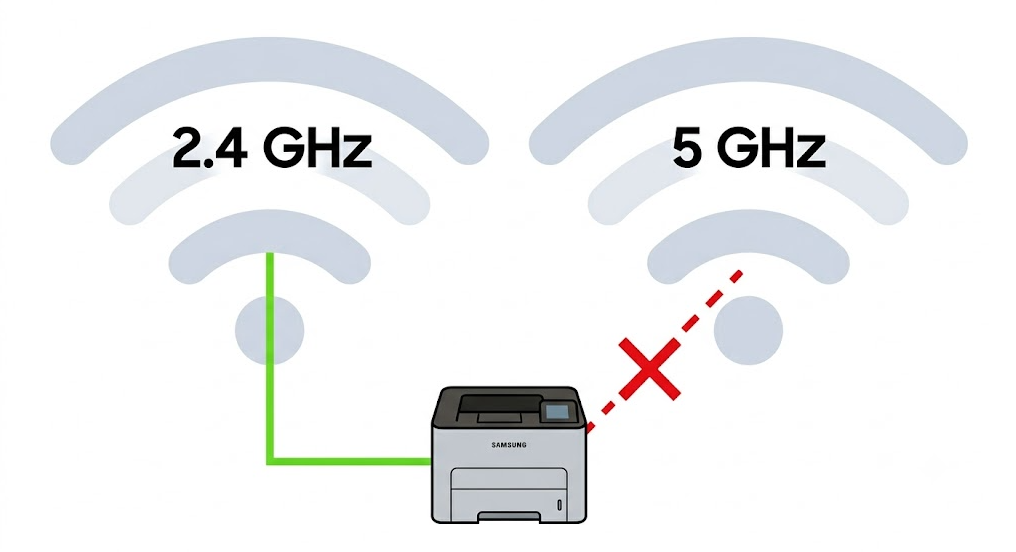
If you're selecting a 5 GHz network, the printer may never connect at all.
Sometimes it won't even display the network name.
That's where most people get stuck because every other device in the house works perfectly.
The printer isn't broken.
It simply doesn't support that frequency.
We'll talk more about compatibility in a moment.
4. The router's security settings have changed
Modern routers often enable newer security options automatically.
While these settings improve security for newer devices, older printers don't always understand them.
For example, if your router is using WPA3 security but your Samsung printer supports only WPA2, the printer may reject the connection every single time.
Nothing appears physically wrong.
The two devices just aren't speaking the same language anymore.
5. The printer firmware is outdated
Firmware is the software that runs inside the printer itself.
If it hasn't been updated in years, it may struggle with newer routers or wireless standards.
This doesn't happen every day.
But if your printer worked perfectly for years and suddenly stopped connecting after replacing your router, firmware deserves a closer look.
6. Network settings became corrupted
Occasionally the stored wireless profile inside the printer becomes corrupted.
It's uncommon.
Still, it happens.
The printer thinks it's connected.
The router thinks otherwise.
Both keep waiting for the other to respond.
When that happens, clearing only the wireless settings usually fixes the problem without resetting the entire printer.
7. Router settings are blocking the printer
Some routers include advanced options like:
-
MAC address filtering
-
AP isolation
-
guest network restrictions
-
device access controls
If one of those settings blocks new devices, your Samsung printer may never complete the connection even though the password is correct.
Most people never touch these settings.
But if someone configured the router in the past, they're worth checking later.
Check Whether Your Samsung Printer Supports Your WiFi Network
Before changing more settings, there's one question worth answering.
Can your printer actually connect to your network?
Because if the answer is no, you'll spend an hour troubleshooting something that isn't fixable until the network settings change.
Does your printer support 2.4 GHz only?
Many Samsung wireless printers support:
-
2.4 GHz WiFi
Some newer models support additional wireless standards.
Many older ones don't.
If your router combines both 2.4 GHz and 5 GHz under one network name, the printer usually connects to the compatible band automatically.
Sometimes it doesn't.
If your router lets you create separate network names, temporarily connect the printer to the 2.4 GHz network.
That single change solves a surprising number of setup problems.
Check the WiFi security type
Take a look at your router's wireless security settings.
If they're set to WPA3 only, older Samsung printers may fail during authentication.
If your router offers a mixed WPA2/WPA3 mode, try that first.
It keeps newer devices protected while allowing older hardware to connect.
Is the network hidden?
Some people hide their WiFi network name for privacy.
The printer won't automatically discover a hidden network.
You'll need to enter the network name manually along with the password.
If you recently hid your SSID and the printer stopped connecting afterward, you've probably found the cause.
Are you using a guest network?
Guest networks often prevent devices from talking to each other.
That's intentional.
It's designed to keep visitors separated from the rest of your home network.
The problem is that printers also need to communicate with your computer or phone.
If the printer connects to a guest network while your computer uses the main network, printing may fail even though both devices have internet access.
That's one of those situations that feels confusing until you know how guest networks work.
And honestly, it's easy to overlook.
At this point, you've ruled out the most common causes without resetting the printer or changing anything drastic.
Now comes the hands-on part.
In the next section, we'll connect the printer using the control panel, try USB-assisted wireless setup, print a network configuration report, update the firmware, and work through router settings that commonly prevent Samsung printers from joining a wireless network.
Connect Your Samsung Printer Using the Control Panel
If the quick checks didn't solve the problem, it's time to reconnect the printer to your wireless network.
Don't worry about factory resetting it just yet.
In most cases, you don't need to.
What you want to do is replace the old wireless profile with the correct one.
The exact menu names vary a little between Samsung printer models, but the overall process stays pretty similar.
-
Open the printer's Menu or Settings.
-
Go to Network or Wireless Settings.
-
Select Wireless Setup Wizard.
-
Let the printer scan for nearby WiFi networks.
-
Choose your wireless network.
-
Enter the WiFi password carefully.
-
Wait for the printer to confirm the connection.
If everything goes well, you'll usually see a confirmation message or a solid wireless indicator light.
Simple enough.
But what if your network doesn't even appear?
That's where things get interesting.
The printer can't find your WiFi network
This tells us something useful.
The printer isn't failing during the connection. It isn't seeing the network in the first place.
That narrows the possibilities quite a bit.
Start with these checks.
Confirm you're using the 2.4 GHz network
We've talked about this already, but it's worth repeating because it causes so many connection problems.
Your phone and laptop may happily connect to 5 GHz WiFi.
Many Samsung printers won't.
If your router broadcasts separate network names, select the 2.4 GHz version instead.
If you aren't sure which is which, check your router settings or the sticker that came with the router.
Move closer to the router
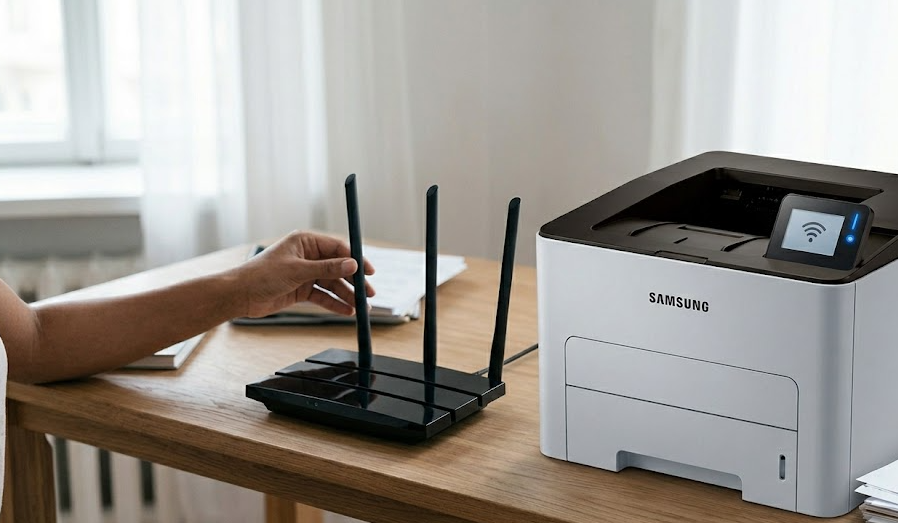
Sometimes the network does appear.
Just not from the room where the printer normally sits.
Try moving the printer within a few feet of the router during setup.
If it connects there, signal strength is probably the issue rather than the printer itself.
You can always move it back afterward and see whether the connection stays stable.
Check whether the network is hidden
If your router hides the network name, the printer won't list it during scanning.
Instead, choose the option to enter the network manually.
You'll need:
-
Network name (SSID)
-
Security type
-
WiFi password
One missing character is enough to prevent the connection, so take your time entering each field.
Connect the Printer Using USB Setup
Now let's say the printer still refuses to connect wirelessly.
There's another method that's often easier.
Instead of typing everything on the printer's small display, you temporarily connect it to your computer with a USB cable.
The setup software sends the wireless settings directly to the printer.
Personally, I like this method when the printer screen feels slow or awkward to use.
It removes a lot of guesswork.
Here's the basic process.
-
Connect the printer to your computer with a USB cable.
-
Install the Samsung printer software if it isn't already installed.
-
Open the wireless setup utility.
-
Choose your WiFi network.
-
Enter the wireless password.
-
Let the software transfer those settings to the printer.
-
Disconnect the USB cable after setup finishes.
If the connection succeeds, the printer should reconnect wirelessly on its own the next time it starts.
Use Samsung Easy Wireless Setup
Some Samsung printer software includes Easy Wireless Setup.
Its job is exactly what the name suggests.
Instead of manually configuring network settings on the printer, the software walks you through the setup from your computer.
If your printer supports it, this is usually one of the smoother ways to reconnect after changing routers.
The wizard normally asks you to:
-
detect the printer
-
choose a wireless network
-
enter the password
-
send the settings to the printer
-
verify the connection
If the software doesn't detect the printer at all, don't panic.
That doesn't automatically mean the printer is faulty.
Check these first.
-
Is the USB cable securely connected?
-
Is the printer powered on?
-
Is Windows detecting the printer?
-
Is another printer management application already running?
Sometimes closing and reopening the setup utility is enough.
Sometimes restarting the computer helps.
Not glamorous.
But it works more often than people expect.
Print a Network Configuration Report
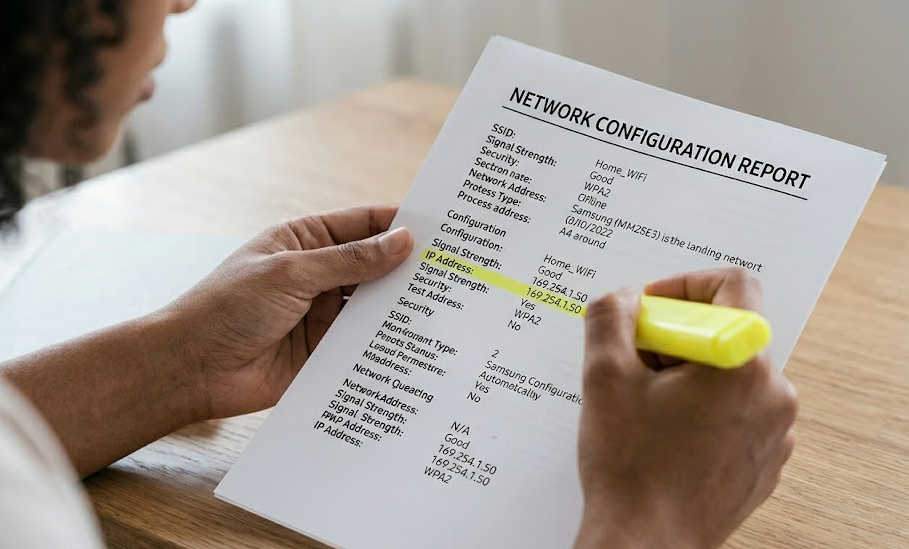
Here's something many guides skip.
Your Samsung printer can usually tell you exactly how it sees the network.
That's incredibly useful.
Instead of guessing what's wrong, you get actual information.
Depending on your printer model, you can print a Network Configuration Report through the control panel or by holding specific buttons during startup.
The report may include details like:
-
IP address
-
wireless status
-
signal strength
-
SSID
-
firmware version
-
MAC address
-
connection status
Now, what matters is how you read it.
If the IP address is blank
The printer never completed the connection.
Focus on wireless setup rather than printing problems.
If the IP address starts with 169.254
This usually means the printer couldn't obtain an address from the router.
In simple terms, the printer asked for permission to join the network but never received a proper response.
Restarting the router sometimes fixes this.
If it doesn't, we'll look at router settings shortly.
If the printer shows "Connected"
That's actually good news.
It means the printer joined the WiFi network successfully.
If your computer still can't find it, the issue has shifted.
Now you're dealing with printer discovery rather than WiFi connectivity.
Different problem.
Different solution.
Update the Printer Firmware
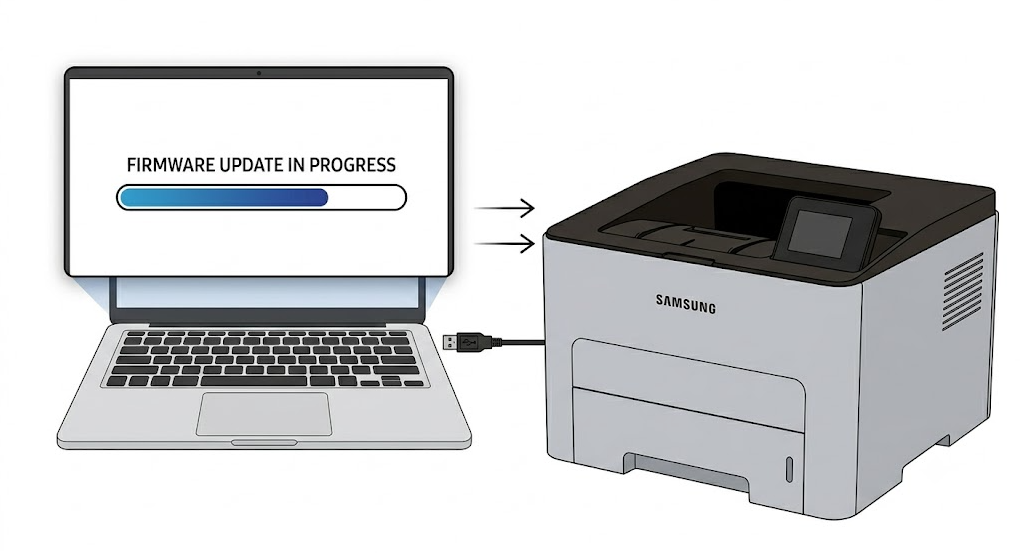
Firmware updates don't solve every wireless problem. But when older printers meet newer routers, outdated firmware becomes much more relevant.
Manufacturers occasionally release updates that improve wireless compatibility, fix authentication bugs, or improve overall network stability.
If your printer hasn't been updated in years, it's worth checking.
You don't have to update firmware every month. This isn't like updating your phone.
But if you're already troubleshooting and every other step has failed, checking the firmware version makes sense.
Before starting an update:
-
Keep the printer powered on.
-
Don't disconnect the USB cable if you're updating through a computer.
-
Don't switch off the router during the process.
Interrupting a firmware update is one thing you really want to avoid.
Thankfully, updates don't take very long in most cases.
Router Settings That Can Prevent Samsung Printers From Connecting
This is where many people stop looking.
They assume the printer is at fault because every other device works.
But routers have changed a lot over the last few years.
Printers haven't changed nearly as fast.
That mismatch creates problems.
Check WPA Security Settings
Many Samsung printers work best with WPA2 security.
If your router uses WPA3 only, the printer may reject the connection before it even joins the network.
If available, try switching the router to a mixed WPA2/WPA3 mode.
That keeps newer devices connected while improving compatibility with older ones.
Disable AP Isolation
Some routers include a feature called AP Isolation.
It prevents wireless devices from communicating with one another.
Useful in public spaces.
Not so useful at home.
If AP Isolation is enabled, your computer may never discover the printer even though both are connected to WiFi.
Review MAC Address Filtering
MAC filtering lets routers block devices unless they're specifically approved.
If it's enabled, compare the printer's MAC address from the Network Configuration Report with the list allowed by the router.
If the printer isn't listed, the router simply refuses the connection.
Restart DHCP Services
Your router assigns an IP address to every device joining the network.
That process happens through DHCP.
Occasionally, the router stops assigning new addresses correctly.
A router restart usually refreshes the DHCP service.
If the problem continues, logging into the router and checking the DHCP settings is worthwhile.
Avoid Guest Networks
This deserves another mention because it catches people all the time.
A guest network isn't just another WiFi name.
It's intentionally separated from the rest of your home network.
Even if the printer joins successfully, your computer might never see it.
Whenever possible, connect both the printer and your computer to the same primary wireless network.
That gives them permission to communicate with each other.
And that's really what wireless printing depends on.
By this stage, you've ruled out incorrect passwords, network compatibility, firmware issues, software setup problems, and most router-related causes.
If the printer still refuses to connect, the next step isn't to keep repeating the same setup process.
Instead, we'll look at what the printer's error messages are actually telling you, when a network reset makes sense, when a full factory reset is justified, and how to tell whether you're dealing with a hardware problem rather than a wireless one.
What Your Samsung Printer's Error Messages Are Really Telling You
Printer error messages aren't always very descriptive. Sometimes you get a message like "Connection Failed."
That's it. No explanation. No clue what to try next.
The good news is that these messages usually point toward a specific type of problem. Once you know what they're trying to say, troubleshooting becomes much more focused.
"Authentication Failed"
This message almost always means the printer reached the router but wasn't allowed to join the network. Think of it like entering the correct building but using the wrong access code.
Start by checking:
-
The WiFi password
-
Uppercase and lowercase letters
-
Special characters
-
The router's security mode (WPA2 or WPA3)
If you've recently changed your WiFi password, delete the old wireless profile from the printer and set up the connection again instead of simply trying the password one more time.
"Unable to Connect"
This message is a little broader.
It doesn't always point to one specific cause.
It could mean:
-
Weak wireless signal
-
Router compatibility issues
-
Incorrect network settings
-
Temporary communication problems
That's why it's better to work through the troubleshooting steps in order instead of guessing.
Skipping around usually leads to repeating the same fixes.
"Network Not Found"
This one is actually quite helpful. The printer scanned for nearby wireless networks but couldn't find the one you selected.
Ask yourself a few questions.
Did the router name change recently?
Is the router broadcasting only a 5 GHz network?
Is the WiFi network hidden?
Has the router finished restarting?
Those answers often explain why the printer can't see the network.
"Printer Offline"
This message causes a lot of confusion because it doesn't always mean the printer has lost its WiFi connection.
Sometimes the printer is connected perfectly.
The computer simply isn't communicating with it.
If your Network Configuration Report shows the printer connected with a valid IP address, you're no longer troubleshooting WiFi.
You're troubleshooting printer discovery or driver communication.
That's a different issue altogether.
When Should You Reset Only the Network Settings?
People hear the word "reset" and immediately think they'll lose everything. Fortunately, that's usually not the case. Most Samsung printers let you reset only the wireless settings.
That removes saved WiFi information without affecting things like print quality settings or paper preferences.
This is the option I'd try before considering a factory reset.
A network reset makes sense if:
-
You changed routers.
-
You changed your WiFi password.
-
The printer keeps trying to join an old network.
-
Wireless setup fails repeatedly even though the password is correct.
-
The printer behaves as though it's connected when it clearly isn't.
After resetting the network settings, run the wireless setup again from the beginning.
Don't rely on previously saved profiles.
They're the very thing you're trying to remove.
When Is a Full Factory Reset Worth Trying?
Honestly? Not nearly as often as people think.
A factory reset should feel like one of the last software steps, not the first. Many people jump straight to it because it sounds like the ultimate fix.
Sometimes it works. But only because it also clears the network settings.
If the problem is actually your router or WiFi compatibility, a factory reset won't magically solve it.
Consider a factory reset if:
-
Network resets haven't worked.
-
Firmware is already up to date.
-
The printer behaves unpredictably.
-
Previous configuration changes have left the printer in an unknown state.
Before resetting, make a note of any settings you'll need later.
Things like:
-
Network information
-
Custom printer preferences
-
Static IP settings, if you've configured them manually
Once the reset finishes, reconnect the printer as though you're setting it up for the first time. Take your time.
It's tempting to rush because you've already done this once. Ironically, that's when small mistakes tend to happen.
How to Tell If the Problem Is Actually Hardware
This is probably the biggest question people have.
"Is my printer broken?"
Most of the time...
No.
But there are situations where hardware becomes the more likely explanation.
For example, if the printer:
-
Never detects any wireless networks
-
Continues failing after testing with multiple routers
-
Shows WiFi hardware errors
-
Randomly disconnects even when sitting next to the router
-
Loses wireless capability after every restart
Those symptoms deserve a closer look. There's another simple test you can try. Connect the printer using a USB cable.
If printing works perfectly through USB but wireless setup fails every single time across different networks, the wireless hardware may have developed a fault.
That doesn't automatically mean the printer is beyond repair.
But it does suggest the issue isn't being caused by your home network.
A Simple Troubleshooting Flow
By this point, you've probably tried a few things already.
Maybe you've restarted the printer twice.
Maybe you've entered the WiFi password so many times that you're starting to doubt whether you even know it anymore.
It happens.
The problem is that once troubleshooting turns into random guessing, it's hard to tell what's actually helping.
So if I were starting from scratch, this is the order I'd follow.
Not because every step fixes the problem on its own, but because each one rules something out. And once you stop guessing, the solution usually becomes much clearer.
1. Make sure the WiFi network is working
Before looking at the printer, check the network itself.
Can your phone or laptop connect without any issues?
If other devices keep dropping the connection too, the printer probably isn't the real problem.
2. Restart the printer and the router
I know.
Everyone suggests this.
But there's a reason it keeps coming up.
Sometimes the printer is still holding onto an old network session, or the router hasn't assigned it a fresh IP address yet. A quick restart gives both devices a chance to reconnect properly.
3. Double-check you're choosing the right WiFi network
This sounds almost too simple.
But if your router has separate names for 2.4 GHz and 5 GHz, or a guest network alongside the main one, it's surprisingly easy to pick the wrong option.
Take an extra few seconds here.
It saves a lot of time later.
4. Check whether your printer supports that network
Now, what matters is compatibility.
Many Samsung printers work only with 2.4 GHz WiFi. If you're trying to connect to a 5 GHz network, the printer may never complete the setup, even though every other device in your house works perfectly.
That's where a lot of people start thinking something is broken.
Usually, it isn't.
5. Enter the WiFi password again
Even if you're fairly sure it's correct.
Printer displays aren't exactly known for making password entry easy.
One missed character, an accidental capital letter, or a hidden space is enough to stop the connection.
6. Run the Wireless Setup Wizard
If the printer includes a Wireless Setup Wizard, use it.
It's designed to guide you through the connection process and often catches small setup mistakes before they become bigger problems.
7. Try USB-assisted wireless setup
Still not connecting?
Then I'd switch methods instead of repeating the same one.
Connecting the printer to your computer with a USB cable lets the setup software send the wireless settings directly to the printer. In many cases, it's faster and less frustrating than typing everything on the printer's control panel.
8. Print a Network Configuration Report
This step gives you actual information instead of guesses.
You can check whether the printer has an IP address, whether it thinks it's connected, and which wireless network it's trying to use.
That changes the conversation from "I think this is the problem" to "Now I know what's happening."
9. Look at the router settings
If everything on the printer looks right but the connection still fails, shift your attention to the router.
Check the security mode.
Look for MAC address filtering.
See whether AP Isolation or other access restrictions are enabled.
Most people never need to change these settings, but if they were configured in the past, they can quietly block the printer from joining the network.
10. Check for a firmware update
Firmware isn't the first thing I'd look at.
But if you've ruled out the common causes, it's worth checking.
Older printer firmware sometimes struggles with newer routers or updated wireless security standards.
11. Reset only the network settings
Here's where I'd start resetting things.
Not the whole printer.
Just the wireless settings.
That clears the saved network information without affecting everything else you've configured.
12. Factory reset the printer, if it still won't connect
Only after you've worked through the earlier steps.
A factory reset isn't harmful, but it's also not a shortcut.
If the router settings are causing the problem, the printer will end up in exactly the same situation after the reset.
13. Try another WiFi network
This is a really useful test.
If the printer connects to a different router or even a mobile hotspot, you've learned something important.
The printer's wireless hardware is probably fine.
The issue is much more likely to be with your original network.
14. Think about hardware only after everything else
This is the last step for a reason.
If the printer never detects any wireless networks, fails on multiple routers, and nothing changes after resets or firmware updates, then hardware becomes a more realistic possibility.
But honestly, most people never get to this point.
The connection problem is usually solved somewhere earlier in the list.
Final Thoughts
If you've read this far, you've probably realized something.
A Samsung printer not connecting to WiFi isn't usually dealing with one big mysterious problem.
It's often a series of much smaller things that happen to produce the same symptom.
Maybe the printer still has your old network saved.
Maybe the router switched to a newer security mode after an update.
Maybe the printer only supports 2.4 GHz and you've been trying to connect it to a different network the whole time.
They're all different situations.
From the outside, though, they look almost identical.
And that's what makes troubleshooting frustrating.
The thing is, you don't need twenty different fixes.
You just need the right one.
Working through the steps in a logical order gives you a much better chance of finding it without resetting everything or assuming the printer has reached the end of its life.
Start with the basics.
See what the printer is actually telling you.
Change one thing at a time.
In most cases, that's enough to get the connection working again.